Follow this guide to sync your Account Manager appointments with the Calendar app on your iPhone.
1. Find your CalDAV details
In Ticaga, open the Account Management Appointments Employee Dashboard to find your CalDAV connection details.
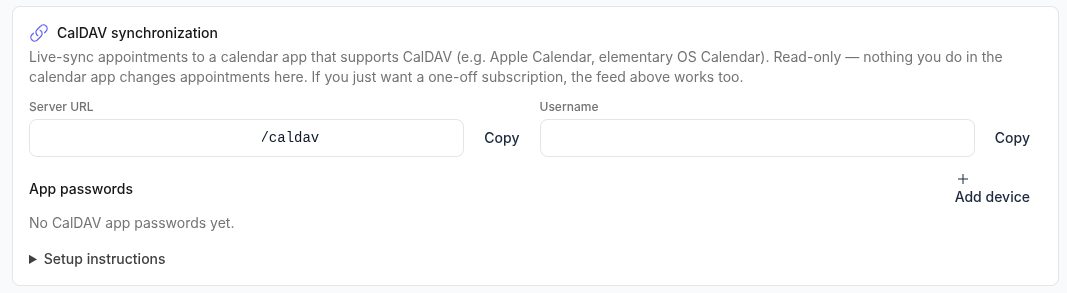
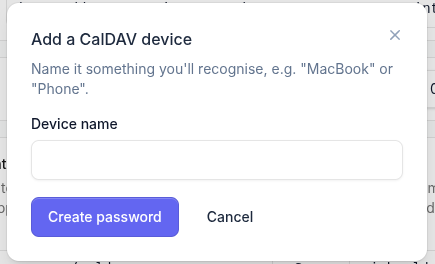
Click Add device to generate a secure, unique password for your iPhone. Use this password when setting up the account.
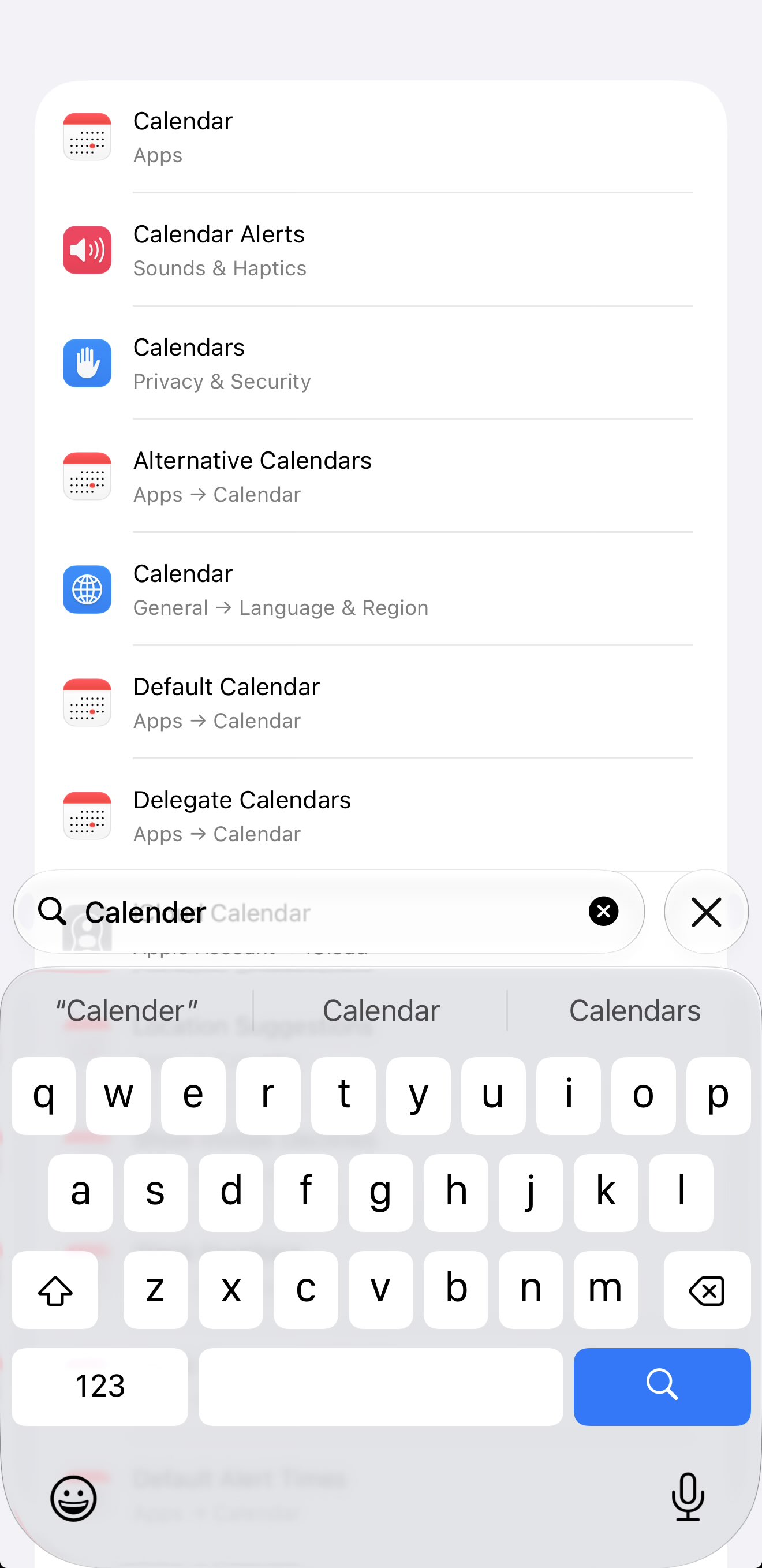
2. Open Calendar settings on your iPhone
Open Settings → Apps → Calendar. You can also search for Calendar in Settings.
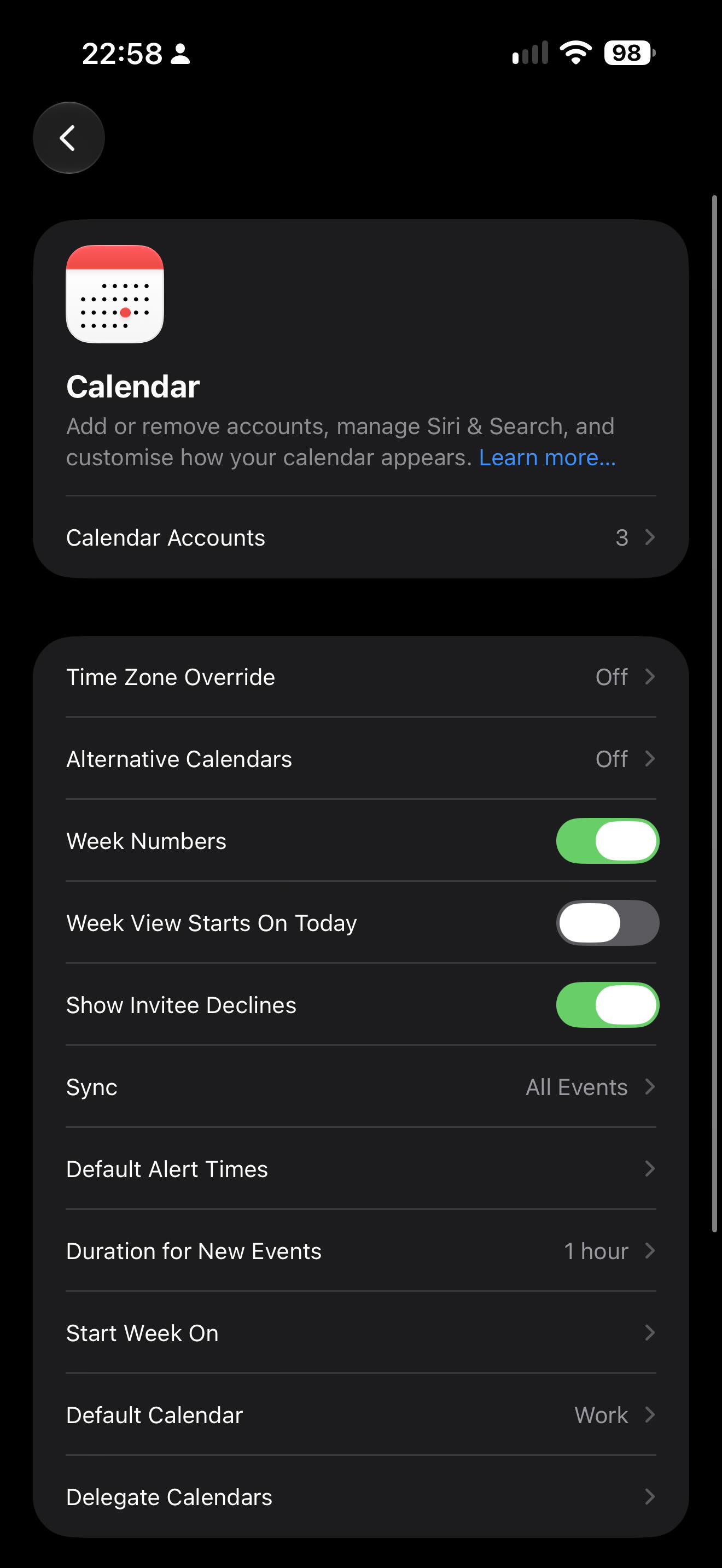
3. Open Calendar Accounts
Tap Calendar Accounts.
4. Add a CalDAV account
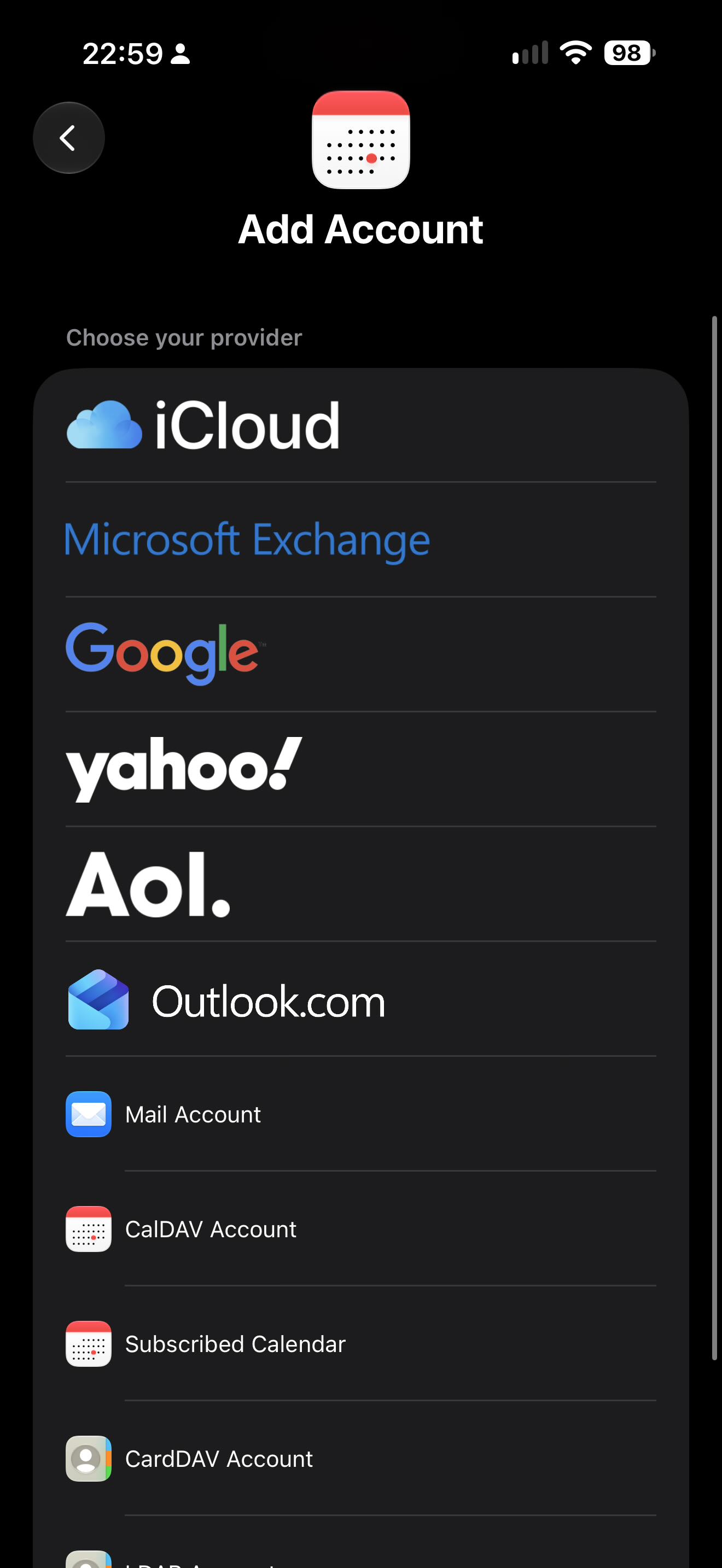
Tap Add Account, then Add Other Account…, and select CalDAV Account.
5. Enter your connection details
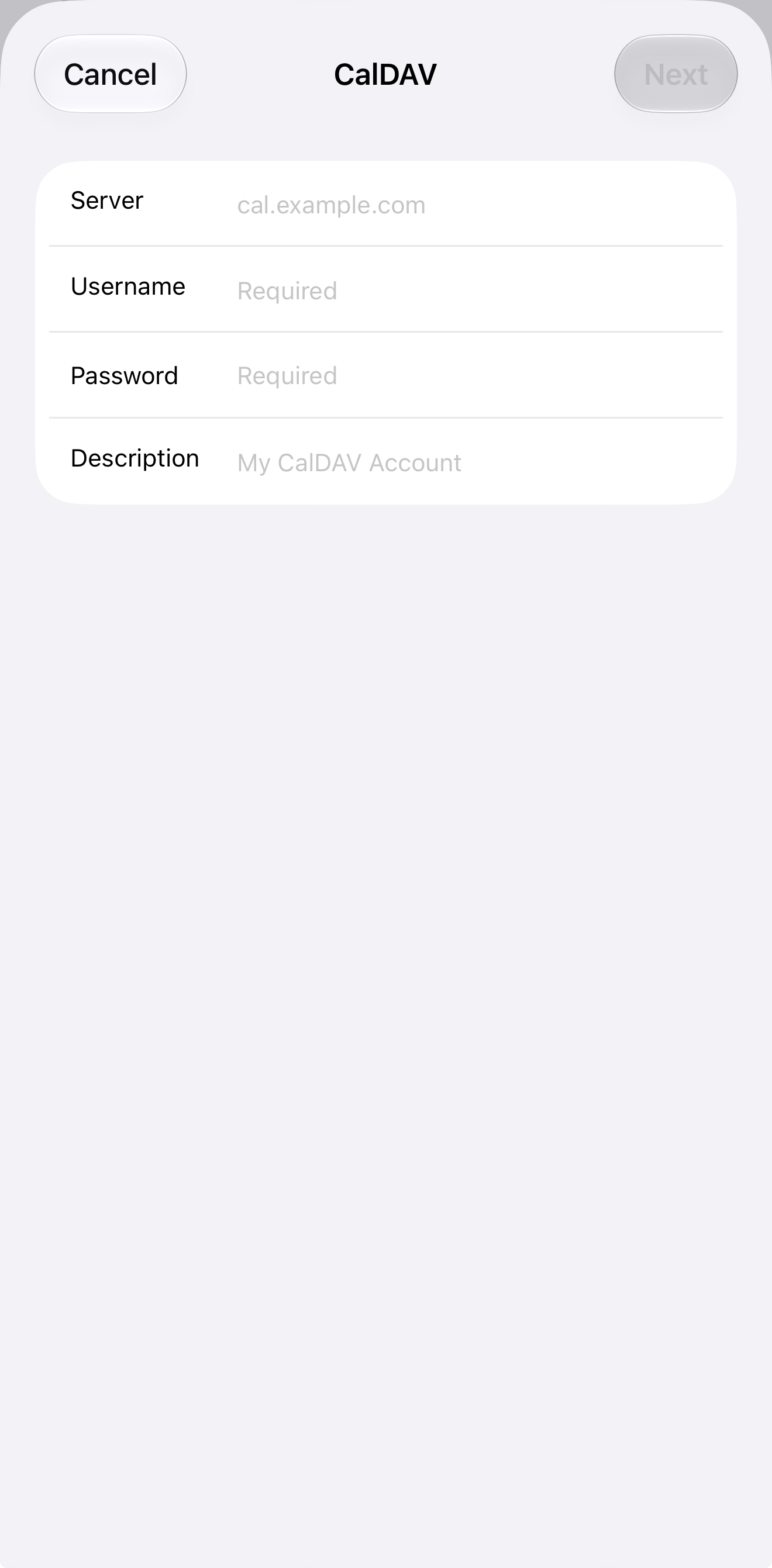
Use the details shown in your Ticaga dashboard to complete the account form:
- Server: Enter the server address provided by Ticaga.
- Username: Enter the CalDAV username provided by Ticaga.
- Password: Enter the unique password generated using Add device.
- Description: Enter a recognisable name, such as Ticaga Appointments.
Follow the on-screen prompts to finish adding the account.
6. Show your appointments
Open the Calendar app on your iPhone and tap Calendars. Make sure the Appointments calendar is selected, then tap Done.
Your synced appointments should now appear in the Calendar app.